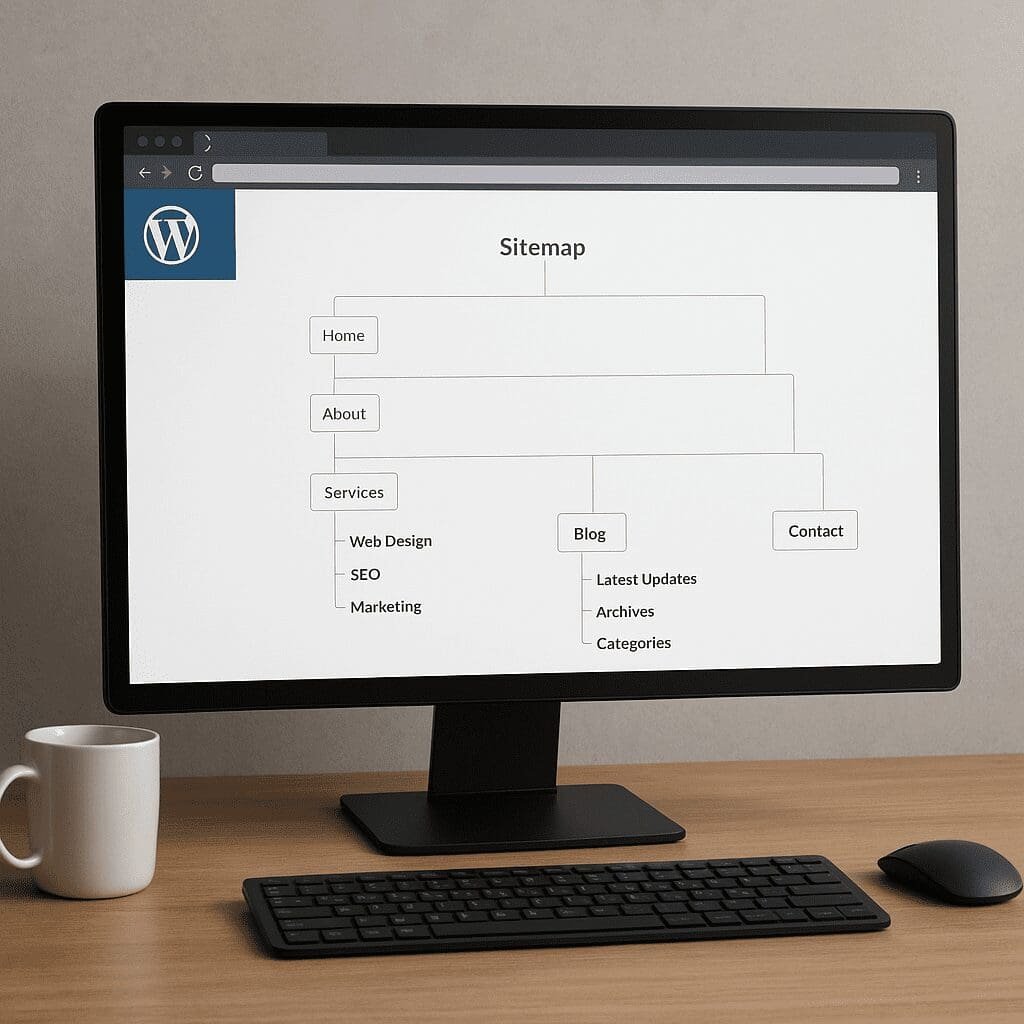
WP Sitemap Page
WP Sitemap Page is a lightweight WordPress plugin that generates a human‑readable sitemap you can place on any page of your site. Instead of focusing on XML feeds meant for search engines, it creates a visual, clickable list of your content for people: pages, posts, categories, tags, and often custom post types. Its promise is simple: better navigation, clearer architecture, and a small but meaningful boost to site discoverability, without the overhead of a feature‑heavy SEO suite or a custom template.
What is WP Sitemap Page and how it works
At its core, WP Sitemap Page provides a single, easy way to output a structured list of your site’s content. You create a new page (for example, “Sitemap”), insert a small shortcode, publish, and you’re done. The plugin programmatically queries your WordPress database to gather published content and prints it as nested lists that inherit your theme’s typography and spacing. Because it doesn’t try to reinvent your design system, the result usually feels native to your site without additional styling.
Unlike XML sitemaps, which are primarily consumed by search engine crawlers, an HTML sitemap serves real visitors. That distinction matters: HTML sitemaps show structure at a glance, help users locate content buried in deep hierarchies, and reduce friction for those who prefer scanning an index over navigating menus. For websites with hundreds of pages—documentation portals, blogs with multiple categories, or company sites spanning product, legal, and resource sections—this page can become a practical “map of everything.”
Most implementations rely on one page and one snippet, but the plugin also supports configuration patterns that allow you to include or exclude specific content types. You might decide to show pages and categories, but not blog posts; or you might surface a custom post type like “Case Studies” while skipping a private “Internal Notes” section. Because the output is just HTML lists, you can divide the sitemap into multiple headings, add explanatory paragraphs, and link to related resources.
Why an HTML sitemap still matters
There is a persistent myth that HTML sitemaps are obsolete because search engines understand site structure from menus, breadcrumbs, and XML sitemaps. They are not obsolete. A well‑built HTML sitemap offers benefits in three areas: user experience, internal architecture, and discoverability.
- User experience: Visitors can scan all top‑level pages in seconds, then drill into subpages if they want details. This helps people who arrive via deep links or who get lost when menus collapse on mobile. It is also valuable for people relying on assistive technologies, because properly marked up lists and headings improve accessibility and keyboard navigation.
- Internal architecture: If you maintain strict hierarchies and ensure that every important page is reachable from the sitemap, you reduce the risk of “orphan pages” with no internal links. This reinforces semantic groupings (for example, Products → Product A → Pricing) and encourages consistent naming and structure.
- Discoverability: Search engines follow links. A sitemap clusters many important links in one place, creating an extra path for bots to find content, which can slightly improve crawlability and, in some cases, speed up indexing of new or previously buried pages.
None of this means the HTML sitemap is a silver bullet, or a replacement for XML feeds. Instead, consider it a complement that strengthens the network of internal links and aids real people in finding what they need.
Installation and getting started
Setting up WP Sitemap Page is straightforward:
- Install from your WordPress dashboard: Plugins → Add New → search for “WP Sitemap Page” → Install → Activate.
- Create a new page and title it “Sitemap” or “Site Index.”
- In the editor, insert the plugin’s shortcode (typically a single tag that outputs the sitemap). Save or publish the page.
- Add a link to this sitemap page in your footer, utility navigation, or 404 template so users can discover it when they need help.
In most cases, the default output is sufficient. However, many site owners configure what content types appear. For example, a corporate website might show only Pages and exclude Posts; a knowledge base could highlight Articles and Glossary terms but hide Press Releases. The plugin’s parameters let you fine‑tune visibility and order. If your site includes custom post types or custom taxonomies created by plugins (e.g., “Portfolio” or “Case Study Types”), the sitemap can often include those as well.
Practical configurations and use cases
There are several patterns that tend to work well across different site types:
- Pages only sitemap: When your blog is secondary, a pages‑only sitemap offers a clean overview of the corporate site without flooding the page with dozens of posts.
- Topic‑focused sitemaps: Larger content sites often publish multiple sitemaps—one for Guides, another for Tutorials—each placed on separate pages. This lets you add introductions, context, and CTAs tailored to that content.
- Support center index: If you run a documentation hub, you can present high‑level categories and their most important articles so customers can quickly jump to troubleshooting topics.
- Legal and compliance index: Group Terms, Privacy, Cookie Policy, Subprocessors, and regional addenda. This is handy for vendors who need to show diligence and for end users who need a central legal resource.
If you create multiple sitemaps, make sure they do not overlap in confusing ways. You can link them from a main “Site Index” page, turning that page into a directory of directories.
Styling, hierarchy, and formatting details
Because WP Sitemap Page outputs standard HTML lists that inherit your theme’s typography, many sites need no additional styling. If you do need visual adjustments, you can override styling with a few CSS rules in your theme or customizer. Focus on spacing between list levels, font sizes for headings, and link states (hover, focus, visited). These small tweaks keep the sitemap scannable without distracting from core site content.
Hierarchical pages deserve special attention. Deep, nested structures can produce very long lists that are hard to scan. Consider collapsing less important levels or linking only to key entry points in each branch. Keep the top levels short and descriptive, and use plain language. Instead of “Resource Container,” write “Resources,” and instead of “Product Category Tree,” use “Products.” Clear labels reduce the cognitive load for both users and search engines.
SEO impact: realistic expectations
An HTML sitemap is not a magic lever for rankings, but it can support broader SEO strategies in measurable ways:
- Internal link equity: Placing a link to your sitemap in your footer gives many pages an extra internal path from the homepage. This can steady the flow of link equity across sections, especially for pages buried three or four clicks deep.
- Faster discovery: When you publish new pages, adding them to a visible sitemap creates another route for bots to find them. Combined with a well‑structured XML sitemap and a strong internal linking strategy, you reduce time‑to‑discovery.
- Reduced orphaning: A systematic checklist that includes “Does this page appear in the HTML sitemap?” helps teams avoid leaving helpful content marooned without links.
- User metrics: A sitemap can lower bounce rates on 404 pages if you link to it as a fallback. Better navigation can indirectly improve engagement metrics, which sometimes correlate with better organic performance.
Risks and pitfalls are modest but real. Very large sitemaps can turn into an overwhelming wall of links. That can dilute user attention and, in extreme cases, produce performance issues if your hosting is underpowered. To avoid that, chunk large sitemaps by section, paginate if necessary, and rely on caching to lighten server load.
Performance and scalability considerations
On most small and medium sites, WP Sitemap Page loads quickly because it performs a handful of database queries and prints the results as a simple list. However, on sites with tens of thousands of posts, generating a complete list on every request can be heavy. If you anticipate growth, consider these tactics:
- Enable full‑page caching: A cached sitemap page becomes a static HTML response, eliminating database work for most visitors.
- Scope the sitemap: Display top‑level pages or key sections instead of every single post. Provide “View all posts in Category” links to reduce on‑page volume.
- Defer non‑critical sections: If your theme allows, lazy‑load or collapse very large sections behind accordions (ensuring they remain crawlable and accessible).
- Measure and adjust: Use server logs and page speed tools to see whether the sitemap contributes meaningful overhead. If it does, split it into multiple pages by function or category.
When built thoughtfully, the sitemap page should remain a negligible fraction of your site’s overall performance budget. The biggest advantage is that it works with whatever infrastructure you already have—no custom endpoints, no complex rendering pipeline.
Accessibility and inclusive design
An HTML sitemap can be a powerful assistive tool if it respects semantic structure. Headings should form a meaningful outline, lists should be real lists (ul/li), and focus states should be clear and visible for keyboard users. Link labels must be descriptive—avoid “click here” in favor of the page’s actual title. Testing the sitemap page with a screen reader and keyboard‑only navigation often reveals low‑effort improvements.
Because the plugin outputs standard markup, most accessibility wins depend on your theme and your content decisions. Keep link text short, ordered logically, and avoid excessive repetition. If you include notes under sections, write them in short sentences, and avoid mixing decorative icons with critical information unless those icons include text alternatives.
Content governance: keeping the sitemap clean
As your site evolves, an HTML sitemap will reflect both the strengths and the messiness of your content model. To keep it useful:
- Exclude thin or temporary pages: Landing pages for one‑off campaigns do not need to live in the sitemap. Keep the index focused on evergreen and reference content.
- Use consistent naming: Pages that read like labels make scanning easier than pages named with marketing slogans.
- Audit quarterly: Make reviewing the sitemap part of your content calendar. Remove retired sections, merge duplicates, and add newly important hubs.
- Align with navigation: While the sitemap is not the primary menu, it should mirror your information architecture. If the sitemap disagrees with your nav, users will get confused.
Compatibility with themes and plugins
WP Sitemap Page is generally theme‑agnostic, because it emits plain HTML that inherits styles. The few compatibility questions that do arise usually involve spacing or list bullets. A quick CSS override resolves them in minutes. On the plugin side, conflicts are rare; sitemap output depends on core WordPress queries rather than custom endpoints or unusual hooks. It coexists well with SEO plugins that generate XML sitemaps, and with custom post type plugins, as long as those types are public and queryable.
If you rely on translation or multilingual plugins, ensure that the sitemap page displays the correct language content in each locale and that your site‑wide links point to the matching language variant. For international sites, that one check can prevent cross‑language dead ends and keep visitors oriented.
Alternatives and when not to use it
There are scenarios where WP Sitemap Page is not the best fit. If you need exhaustive control over order, custom grouping, icons, or complex layout grids, building a bespoke sitemap template in your theme may be better. If your site is a small one‑pager with five sections, a sitemap page could be redundant. And if your primary need is an XML feed for search engines, remember that modern WordPress ships with basic XML sitemaps out of the box, and leading SEO plugins provide advanced XML controls.
Alternative HTML sitemap plugins exist, with varying degrees of features. Some allow drag‑and‑drop grouping or automatically split large lists into multiple columns. Compare options if you need niche capabilities. The appeal of WP Sitemap Page is its simplicity: one plugin, one page, minimal configuration, and a clean output that rarely surprises you.
Security and maintenance
From a security standpoint, this plugin is low‑risk because it does not process user input beyond the page rendering context and it surfaces only public content. Still, follow standard hygiene: keep the plugin updated, run it on a current WordPress/PHP stack, and remove it if you stop using it. If your site enforces strict privacy rules, double‑check that the sitemap does not expose draft or private pages. In most setups, those will be excluded by default, but it is worth verifying after major content or role changes.
Editorial workflows and team collaboration
Teams benefit from treating the sitemap as a living artifact. Editors can use it to identify content gaps, redundant pages, or sections that need reorganization. Product managers can test whether the site communicates a coherent narrative from top to bottom. Support teams can link customers to the sitemap when they cannot find a resource. Small feedback loops—like a form on the sitemap page asking “What’s missing?”—provide real‑world signals about discoverability issues.
Measuring value and iterating
To prove the sitemap’s value, set up simple metrics. Track internal clicks to the sitemap from your footer, then track onward clicks to see which sections attract attention. On the search side, monitor crawl stats and the speed at which new pages appear in search results after publishing. A/B testing is difficult for a sitemap page, but you can compare metrics before and after adding the sitemap or after reorganizing its sections. Over time, a pattern emerges: the sitemap is most helpful during discovery and troubleshooting moments—on 404 pages, after search within the site fails, or when new users familiarize themselves with your offerings.
Opinion: strengths, trade‑offs, and verdict
WP Sitemap Page shines because it does one job well. It is quick to install, outputs clean, predictable HTML, and respects your theme’s visual language. It encourages tidy architecture without forcing you into an opinionated layout. The main trade‑offs are intentional: it does not try to replace a full SEO toolkit, it does not manage redirects or XML feeds, and it won’t magically fix a confusing content model. If your site is already chaotic, a sitemap will reveal the chaos; it won’t organize it for you.
That said, the plugin earns a recommendation for most content‑driven sites. It is small, easy to maintain, and useful for both humans and bots. For marketers and editors, it becomes an evergreen index; for developers, it is a low‑overhead enhancement; for users, it’s a reliable exit when navigation fails. If you value clarity over bells and whistles, this plugin delivers.
Implementation checklist
- Create a dedicated “Sitemap” page and insert the plugin’s shortcode.
- Decide which content types to include; exclude thin or temporary pages.
- Link the sitemap in the footer, the 404 template, and site search results pages with zero matches.
- Style gently: improve list spacing, focus states, and heading hierarchy.
- Enable full‑page caching and test load time on the sitemap.
- Audit quarterly for structure, labels, and redundant items.
- Verify that multilingual variants display the correct language content.
- Confirm that the sitemap complements, not replaces, your XML sitemaps.
Frequently asked questions
Does WP Sitemap Page help with search engines?
Indirectly. It does not replace XML sitemaps, but it can improve internal linking and discovery. A clean HTML sitemap assists both bots and users, which can contribute to better site health.
Will it list private or draft content?
No—by design it lists public content. Always verify after major changes, but standard setups exclude drafts and private pages automatically.
Can I include custom post types and taxonomies?
In most cases, yes. If those items are public and queryable, you can include them. For highly customized structures, test on staging first.
How do I avoid a massive wall of links?
Scope the sitemap to top‑level sections, split large sites into multiple sitemaps, and add brief intros. Chunking improves readability and keeps your page fast.
Is it compatible with caching and performance plugins?
Yes. In fact, enabling caching is recommended for large sites to reduce server load and keep response times snappy as your site grows in scalability.
Final thoughts and best practices
An HTML sitemap remains a timeless usability tool. WP Sitemap Page makes it easy to add one without reworking your theme or installing an oversized plugin suite. Keep your sitemap focused on content that matters, organized by genuine user needs, and updated as your information architecture evolves. Put it within reach from your footer and 404s, measure how people use it, and refine steadily. As with most site improvements, the payoff compounds: better orientation, fewer dead ends, and a site that feels coherent from the homepage to the deepest leaf node—across every taxonomy and entry type you publish.