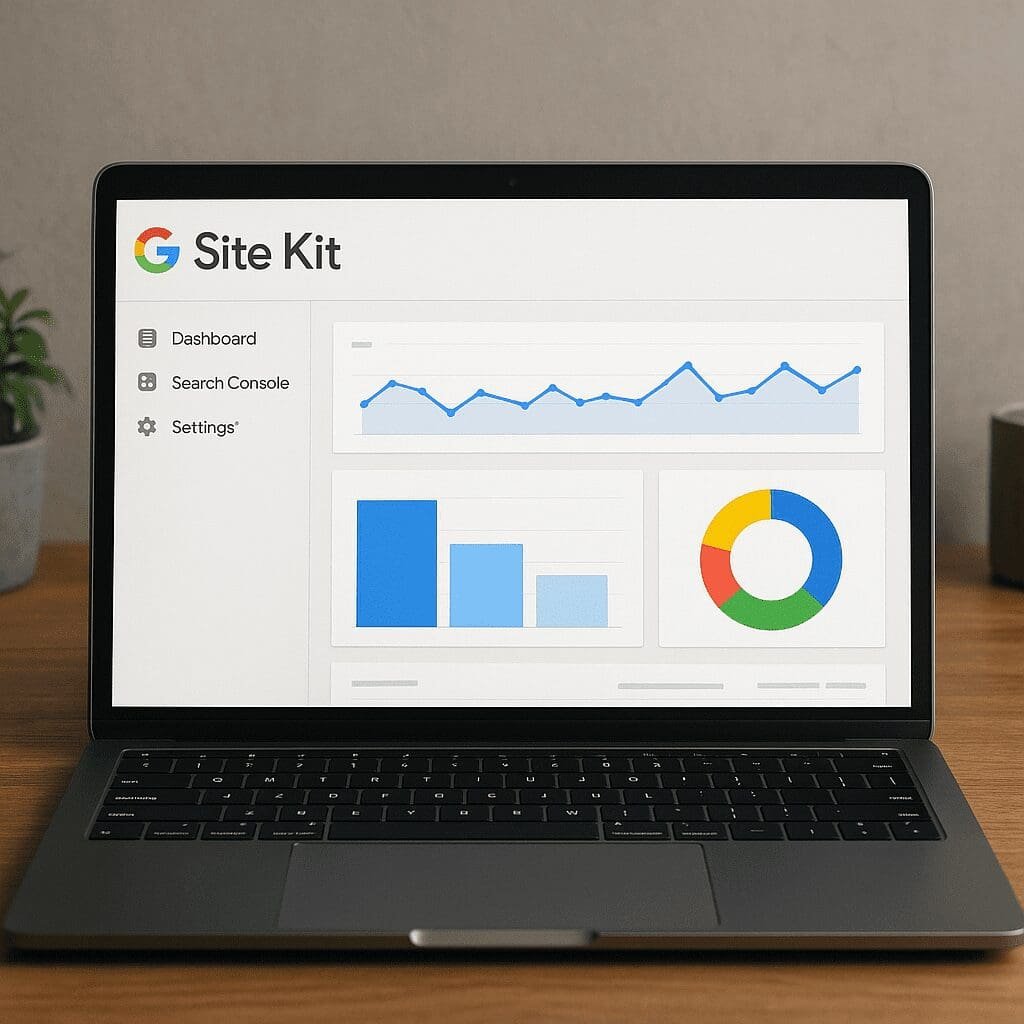
Google Site Kit
Google Site Kit is a free WordPress plugin created by Google to bridge the gap between your website and the most important Google services. Instead of jumping between tabs for Search Console, Google Analytics, PageSpeed Insights, AdSense, and Tag Manager, you see key website data inside your WordPress dashboard. That convenience is not only about saving time—it reduces configuration errors, surfaces actionable insights faster, and helps site owners make decisions based on reliable, first‑party data.
What Google Site Kit Is and How It Works
At its core, Site Kit is an official, open-source connector. It authenticates your WordPress site with Google via OAuth, adds the right snippets where required, and exposes data from connected services in clear, contextual widgets (for example, on the WordPress Dashboard screen, on the Site Kit main screen, and on individual post edit screens). This creates a consistent flow of information—how people find your site, which pages drive traffic, what users do after they land, and how fast your pages load.
The plugin integrates with a small but strategic set of Google products:
- Search Console: impressions, clicks, average position, and queries that lead users to your site.
- Google Analytics 4 (GA4): events, engaged sessions, user acquisition, and top content performance.
- PageSpeed Insights (Lighthouse): lab and field metrics, including Core Web Vitals such as Largest Contentful Paint (LCP), Cumulative Layout Shift (CLS), and Interaction to Next Paint (INP).
- AdSense: estimated earnings and fill rates to assess monetization health.
- Tag Manager: centralized script deployment for Marketing and measurement, with Site Kit simplifying its placement.
Site Kit does not replace the full interfaces of those services; it surfaces the highlights that matter most for day‑to‑day operation while maintaining one-click deep links to the original tools whenever you need granular analysis. The plugin is maintained in public on GitHub, follows WordPress coding standards, and has been adopted by millions of sites—ranging from personal blogs to high-traffic publishers—precisely because it makes integration straightforward for non-developers and efficient for busy teams.
Installation and Setup Walkthrough
Pre‑requisites and preparation
Before you begin, make sure you can sign into a Google account that should own or manage your site data. It helps to know whether you already have properties in Search Console and GA4. If you don’t, Site Kit can create them during setup. Decide who will own the data (an organization account is best for teams), and clarify whether you plan to use Tag Manager, AdSense, or both.
Step-by-step setup (simplified)
- Install: In WordPress, go to Plugins → Add New, search “Site Kit by Google,” and click Install and Activate.
- Connect: Click Start Setup. You’ll be guided to sign in with Google and grant permissions. Site Kit uses OAuth, which is safer than pasting API keys.
- Verify site ownership: Site Kit can place an HTML meta tag automatically for Search Console. If your site is already verified by another method (DNS, file upload), it respects that. This instant verification step is one of the biggest time-savers.
- Search Console: Choose or create a property. URL-prefix properties are fine for most WordPress sites; domain properties cover all protocols and subdomains.
- Analytics: Link an existing GA4 property and stream or let Site Kit create them. It will insert the GA4 tag via gtag.js unless you prefer Tag Manager.
- PageSpeed Insights: No setup required; Site Kit queries the API to show your lab and field metrics.
- AdSense: If you plan to monetize, connect AdSense and let Site Kit place the auto ads code. Approval can take time; Site Kit displays your status.
- Tag Manager: Optional. If you use GTM, connect your container to avoid duplicated tags and manage other marketing scripts in one place.
After onboarding, the WordPress Dashboard gets a Site Kit widget summarizing traffic and search visibility. Each post and page editor includes a panel with its performance snapshot: page clicks from Search, top queries, who visits that URL, and how fast it loads. That per‑URL context is particularly useful when optimizing content because it unites both discovery and behavior signals in a single place.
What Site Kit Does—and Doesn’t—Do for SEO
Site Kit itself does not change content or emit structured data, so it does not directly influence rankings. What it does is give you the right data to make informed decisions, which indirectly strengthens your SEO program. Think of it as a measurement and visibility layer: it helps you understand what to fix, confirm whether your changes worked, and detect issues early.
Search Console inside WordPress
The Search Console integration is arguably Site Kit’s anchor feature. For each page or post you can see impressions, clicks, and the queries that brought users there. This reduces friction in editorial workflows: writers can revise headlines and meta descriptions and immediately cross-check search performance without leaving the editor. It also accelerates the classic SEO loop—discover opportunities (impressions without clicks), update content to match search intent, and monitor whether click-through rate improves.
PageSpeed Insights and Core Web Vitals
Page experience signals matter for user satisfaction and conversion. Site Kit pulls Lighthouse lab tests and, when available, field data from the Chrome User Experience Report. You’ll see key Web Vitals in context: LCP for loading speed, CLS for visual stability, and INP for interactivity. When these metrics regress, Site Kit becomes an early warning system. While Site Kit doesn’t optimize anything automatically, it provides the diagnostic detail that nudges you to compress images, lazy‑load media, reduce render‑blocking resources, and improve server performance. Over time, these improvements support better engagement and indirectly reinforce organic visibility.
Analytics 4 for engagement signals
Behavior signals are central to content strategy. GA4 shifts away from sessions to an event-based model. Site Kit handles the base GA4 tag placement, after which you can review engaged sessions, traffic sources, and top-performing pages in your dashboard. For product and lead-gen sites, custom events and conversions may still be necessary; Site Kit provides the foundation but you’ll define business-specific events in GA4 or via Tag Manager.
Does Site Kit improve rankings?
No plugin automatically boosts rankings. Rankings depend on content relevance, technical health, backlinks, and user satisfaction. What Site Kit does is connect content creators and marketers with reliable data—reducing the time between observing a problem and shipping a fix. That shorter feedback loop, if used consistently, is what leads to sustainable gains in organic traffic.
Privacy, Consent, and Compliance
Many regions require transparency and control over cookies and online identifiers. Site Kit supports Google’s Consent Mode v2, allowing Analytics and Ads tags to adapt based on user choices. If you deploy a consent banner (e.g., via a compatible CMP or through Tag Manager), Site Kit can respect the consent state and avoid setting marketing cookies unless the user agrees. This helps you align with GDPR, ePrivacy, and state-level privacy laws.
Several practical tips:
- Pair Site Kit with a consent banner that communicates clearly and stores preferences. If you use Tag Manager, implement the consent API there; Site Kit will not override it.
- In GA4, consider IP anonymization and granular data retention settings. Site Kit doesn’t change those defaults; you control them in GA4 Admin.
- Avoid loading duplicate Analytics tags. If Site Kit adds the GA4 tag and Tag Manager also injects one, you’ll double-count. Choose one path and keep it consistent.
- Use the built-in data removal tools for test environments to avoid contaminating production reports.
Handled properly, Site Kit supports a privacy-aware setup with clear governance. This is critical not just for compliance but also for user trust and clean data. For many organizations, the plugin becomes a operational gateway for privacy-first measurement.
Performance Considerations and Best Practices
Any analytics or ads tags can add network requests. Site Kit itself is lightweight in the admin, but it facilitates the placement of scripts that do impact page weight. A few good habits mitigate this:
- Load only what you need. If you do not use AdSense, don’t connect it. If you rely on Tag Manager, avoid also placing standalone GA4 via Site Kit.
- Measure before and after. Use Site Kit’s PageSpeed Insights panel to quantify the effect of any new script and adjust.
- Implement lazy strategies where possible (e.g., tag firing rules in Tag Manager) so truly nonessential tags don’t block first render.
- On mobile, prioritize Core Web Vitals. Fonts, images, and third-party widgets often dwarf the cost of measurement scripts; optimize those first.
Site Kit is compatible with popular caching and optimization plugins, but occasionally you may need to exclude the measurement scripts from defer or combine rules to ensure data accuracy. Always test in a staging environment and confirm that events still fire in GA4’s DebugView.
Working in Teams: Roles, Permissions, and Collaboration
Site Kit respects WordPress capabilities and adds its own permission checks. Administrators typically connect and manage services; Editors and Authors can still view post-level reports, which spreads awareness without granting full access to Google properties. For agencies, this enables a smooth collaboration model: the agency’s Google account can own Search Console and Analytics, while the client’s site editors view high-level numbers in WordPress.
Because data lives in Google’s systems rather than in WordPress, removing the plugin doesn’t delete your data. This separation is healthy: it means you can switch tools without losing history. Site Kit acts like a secure window into your data with sensible defaults, enabling editorial decisions driven by dashboards everyone can understand.
Troubleshooting and Common Pitfalls
Most setup issues fall into predictable categories. A short checklist helps:
- Ownership conflicts: If another user verified the site in Search Console using a method you can’t access (e.g., DNS by a different host), coordinate to add your Google account as a verified owner. Site Kit can place its own meta verification tag to avoid conflicts.
- Duplicate tags: Ensure you’re not adding GA4 via both Site Kit and a separate plugin or theme snippet. Duplicates cause inflated sessions and corrupted reports.
- Plugin conflicts: Some security or optimization plugins can strip meta tags or delay scripts. Whitelist Site Kit’s verification tag and gtag.js where necessary.
- Ad blockers: If data looks unexpectedly low, check whether an ad blocker is active in your browser during testing. Validate with GA4 DebugView or Tag Assistant.
- Staging vs production: Exclude staging domains from measurement or mark them as internal traffic in GA4 to protect data quality.
- AMP considerations: If you use AMP, confirm your tagging strategy. Site Kit supports AMP tagging, but test events across both AMP and non‑AMP pages.
- Optimize sunset: Google Optimize was discontinued. If you see legacy references, they are historical. For experiments, consider GA4’s A/B guidance or third-party tools managed via Tag Manager.
Advanced Tips for Power Users
Custom events and conversions
Site Kit injects the base GA4 tag. For richer analysis, define custom events for key actions—form submissions, downloads, video engagement. The cleanest path is to push those events via Tag Manager and keep all tracking logic in one place. Then, mark them as conversions in GA4 Admin. This preserves the simplicity of Site Kit while scaling sophistication.
Looker Studio and data blending
While Site Kit offers at-a-glance reporting, Looker Studio (formerly Data Studio) is better for deep dives and stakeholder dashboards. Because Site Kit uses the same underlying properties, all data remains accessible there. Build a blended report pulling Search Console queries, GA4 engagement, and AdSense revenue to map your content funnel end-to-end.
Filters, hooks, and developer controls
Site Kit exposes WordPress filters and actions to tweak behavior—for example, to disable Analytics on certain user roles, adjust snippet placements, or connect via Tag Manager only. Developers who prefer a minimal footprint can combine Site Kit’s verification and Search Console benefits with a more bespoke Tag Manager setup. The point is flexibility: Site Kit is not an all-or-nothing tool; it adapts to varied stacks.
Monetization with AdSense
If you run a content site, Site Kit’s AdSense module provides earnings summaries right in WordPress. Auto ads simplify setup by letting Google decide where to place ads, but you can also refine placements via AdSense and Tag Manager. Use PageSpeed data to balance revenue and user experience. Sometimes a small reduction in ad density improves engagement and long‑term revenue. Site Kit’s steady visibility into the relationship between traffic and earnings makes monetization decisions more data-driven.
Security Posture and Data Ownership
Site Kit authenticates with Google through OAuth and uses the WordPress REST API for communication. It does not store sensitive analytics secrets in plain text; rather, it stores tokens securely and scopes permissions to the services you connect. Crucially, your data remains in your Google accounts. Site Kit acts as a viewer and tag installer, not as a storage system. For organizations with strict governance, this separation simplifies audits: revoke access in Google Admin, and Site Kit loses its data window without touching historical data.
Interesting Notes and Lesser‑Known Capabilities
- Per‑URL reporting in the WordPress editor accelerates on-page optimization. Being able to see which queries led to a post and whether it’s slow on mobile drives better editorial decisions.
- Deep links from widgets to the native tools always preserve context (e.g., clicking “View in Analytics” opens the exact report and date range).
- Site Kit’s checks for AMP contexts, multiple environments, and existing verifications reduce setup errors you might encounter with manual configurations.
- For multilingual sites, Site Kit works fine as it is service-agnostic; language-specific analysis happens in Search Console (by page) and GA4 (by content grouping or page path).
- Multisite networks are supported; each site in the network can connect to its own services, allowing granular control per subsite.
Alternatives and When to Skip Site Kit
Some setups don’t need Site Kit:
- If you already have a highly curated Tag Manager deployment with robust governance, manually placing tags may suffice and reduce plugin count.
- For minimalistic sites that only need a single GA4 tag, a lightweight snippet in the theme can be enough—at the cost of losing the WordPress-native reporting.
- Privacy-led, no‑cookies measurement approaches may avoid Google services altogether. In that case, Site Kit isn’t necessary.
That said, most WordPress site owners benefit from Site Kit’s convenience, reduced misconfiguration risk, and the clarity of in-dashboard data. The ability to confirm Search Console visibility next to content is often reason enough to keep it installed.
Practical Workflow Examples
- Content calendar: Each week, filter posts with high impressions but low CTR using the Site Kit → Search Console panel. Update titles and descriptions, then watch the trend over the next 14 days.
- Speed sprints: Identify pages with poor LCP or INP from the PageSpeed panel, ship optimizations (image compression, CSS splitting), and confirm improvements through field data when available.
- Campaign measurement: Publish a landing page, mark its form submission as a conversion in GA4, and monitor the acquisition mix (organic, social, referral) with Site Kit summaries and Looker Studio deep dives.
- Revenue alignment: For ad-supported sites, correlate AdSense earnings with traffic changes after a content push. Avoid knee-jerk layout changes until you’ve seen a full week of normalized data.
What About Data Accuracy and Delays?
Search Console data can lag 24–48 hours; GA4 is closer to real-time but applies thresholding and modeling in some views. Site Kit reflects those realities because it reads from the official APIs. Accept the latency, and plan editorial decisions on rolling trends rather than single-day spikes. For immediate checks, use GA4’s Realtime and DebugView, and PageSpeed lab tests for instantaneous analytics feedback.
Accessibility and Editorial Experience
Site Kit’s admin UI follows WordPress patterns, with attention to keyboard navigation and ARIA labeling. That consistency matters when more of your team—writers, editors, coordinators—interacts with the reporting blocks. The less time people spend hunting for numbers, the more time they spend improving content. Site Kit excels at giving just enough data at the right moment without overwhelming the editor.
Opinion: Is Site Kit Worth It?
After extended use across portfolios—from hobby blogs to enterprise WordPress instances—the verdict is positive. Site Kit earns its place by reducing complexity while improving visibility. Its greatest strengths are the frictionless property setup, reliable snippet placement, and the way it brings Search Console intelligence to the content team. It doesn’t pretend to be a full analytics suite or a site optimizer; it’s a bridge that keeps data honest and accessible.
There are trade-offs. If you’re a heavy Tag Manager user, you must pay attention to avoid duplicate tags. Highly specialized analysts may outgrow the in-dashboard summaries and live in GA4 or Looker Studio instead. And while Site Kit helps you diagnose speed and content issues, you still need to do the hard work of technical fixes and editorial improvement.
Even with those caveats, the overall value is hard to ignore. Site Kit makes integration and measurement attainable for non‑technical users, and it keeps advanced paths open for developers. For most WordPress sites, that combination—clarity, control, and extensibility—translates into better decisions and, ultimately, better outcomes.
Quick Tips to Get the Most Out of Site Kit
- Connect Search Console and GA4 on day one of a new site to start historical baselines early.
- Review the Site Kit dashboard weekly; set a simple checklist: search opportunities, top landing pages, and pages with poor Web Vitals.
- Choose a single source of truth for scripts—Site Kit standalone or via Tag Manager—and document the decision.
- Use consent mode and a reputable CMP to respect user choices while preserving aggregate measurement.
- Educate editors to check the per‑post Site Kit panel before publishing updates; it builds an evidence-driven culture.
Final Takeaways
Site Kit by Google is not a magic wand; it’s an orchestrator. By consolidating data from Search Console, GA4, PageSpeed Insights, AdSense, and Tag Manager, it turns your WordPress admin into a decision surface. Use it to spot content opportunities, validate improvements, manage tracking responsibly, and keep a careful eye on performance. Paired with a solid editorial process and respect for user privacy, Site Kit delivers the steady, compounding advantages that matter: clearer insights, fewer mistakes, and a faster path from idea to impact—without leaving your dashboard.