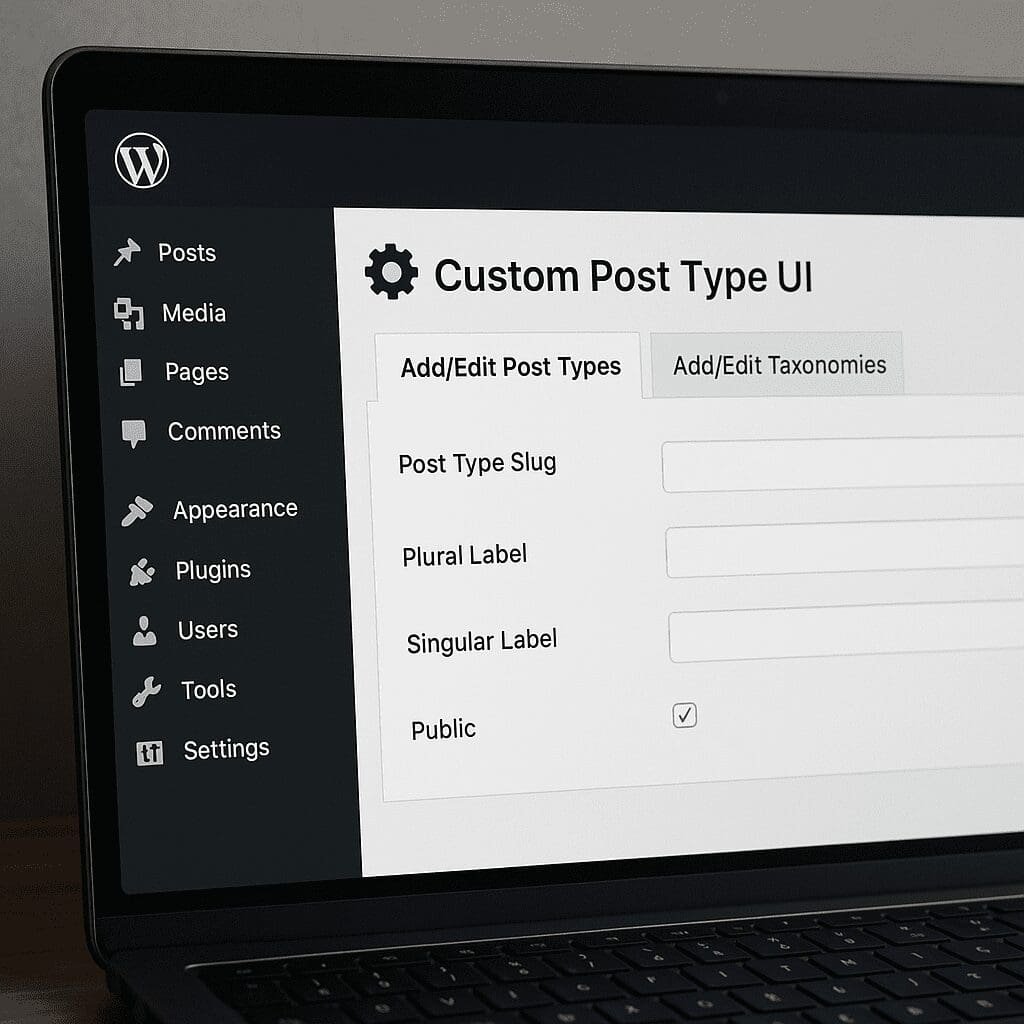
Custom Post Type UI
Custom Post Type UI (often abbreviated as CPT UI) is one of those rare WordPress plugins that feels deceptively simple yet unlocks a deep layer of control over how content is structured, discovered, and maintained. By offering a friendly administrative interface for registering custom post types and taxonomies, it removes the need to write boilerplate code, accelerates prototyping, and makes content modeling accessible to site builders and editors. This article explores what the plugin does and where it shines, its indirect influence on SEO, trade-offs to keep in mind, and practical tips to get the most value from it in both classic and modern WordPress environments.
What Custom Post Type UI Is and Why It Matters
WordPress began as a blogging platform, but it has evolved into a content management system capable of representing nearly any domain: real estate listings, events, job boards, portfolios, documentation, and more. Custom post types and taxonomies are the foundation of that evolution. CPT UI brings these foundations to the dashboard so that site owners can define new content types and organize them without touching code. In other words, it helps you describe your business objects directly in WordPress: a “Course,” a “Recipe,” a “Property,” or a “Case Study,” paired with meaningful categories and tags beyond the defaults.
Where the plugin stands out is the balance it strikes between simplicity and completeness. It exposes most of the native register_post_type and register_taxonomy arguments through toggles and inputs, provides human-friendly labels to improve editorial experience, and bridges the gap between conceptual modeling and practical implementation. For teams with strict deployment workflows, it also offers an export to PHP feature so the settings can be transferred from database-driven configuration to code that lives in version control.
If your goal is to tame content sprawl, align publishing with a business domain, or improve the long-term maintainability of a site, a carefully modeled set of custom post types and taxonomies created with CPT UI can be transformative.
Core Features and Practical Use Cases
- Create unlimited custom post types with granular control over public visibility, archival behavior, support for core features (title, editor, excerpt, thumbnail, revisions, comments), and menu placement.
- Create and attach custom taxonomies to any post type, with options for hierarchical or non-hierarchical behavior and UI visibility.
- Control editorial language through labels, ensuring clean, understandable interfaces for writers and editors.
- Manage settings for the Block Editor, making sure your post types are available where they are actually used.
- Export configurations to JSON or to raw PHP for theme/plugin integration and versioning.
- Import configurations for fast migration across environments, minimizing human error during deployment.
Representative scenarios
- Publishing teams define a “Resource” content type, complete with a “Topic” and “Audience” taxonomy, then build authoring workflows, navigation, and archives around it.
- Agencies prototype content models with CPT UI, validate with stakeholders, and later export to code for production hardening.
- Product marketing sites run “Changelog” and “Integrations” post types to keep updates and partner content structured and discoverable.
- Educational platforms separate “Courses,” “Lessons,” and “Instructors,” improving navigation, backend clarity, and front-end filtering.
How CPT UI Fits into the WordPress Architecture
CPT UI sets registration rules; it does not dictate how content is displayed. Display is handled by your theme or site templates. Classic themes leverage template hierarchy files such as single-{post_type}.php and archive-{post_type}.php, while block themes use template parts and patterns defined in the site editor. Understanding this separation is crucial: CPT UI defines structure; your theme determines presentation.
Block Editor readiness
To make your post types editable with the modern editor, ensure “show in REST” is enabled so the type is available to the Block Editor and other consumers of the WordPress REST API. When enabled, block-based templates, patterns, and custom blocks can seamlessly power robust editorial experiences. This is where CPT UI’s easy switches complement the sophistication of Gutenberg-driven sites.
REST and headless workflows
With show_in_rest turned on, your custom types and taxonomies appear in API endpoints by default, letting you build headless front ends using React, Vue, Next.js, or Gatsby. API-first architectures gain immediate mileage by modeling data in the dashboard and consuming it over REST without the friction of writing registration code from scratch.
Capabilities and permissions
CPT UI exposes capability settings, allowing you to tie editorial privileges to user roles. For complex organizations, mapping capabilities per post type ensures content governance: who can create, edit, publish, or delete a certain object. This keeps administrative boundaries clean and less error-prone.
Does Custom Post Type UI Help with SEO?
The plugin does not optimize search on its own, but it strongly influences the inputs that do. SEO thrives on clarity: clear topical clusters, meaningful taxonomy, focused archives, and structured content types. By modeling your content properly, you create natural landing pages (archives and singles) that search engines can understand and users can navigate.
Specific SEO benefits that emerge from CPT UI usage include:
- Cleaner site architecture: Custom post type archives act as hubs that consolidate related content, improving internal linking and topical relevance.
- Purposeful taxonomies: Custom taxonomies map to real-world categories, reducing mismatch between content and navigation.
- Improved sitemaps: SEO plugins often include CPTs and taxonomies in XML sitemaps, ensuring comprehensive discovery.
- Better page intent: Focused post types reduce mixed-purpose content, helping search engines infer intent and users find what they need.
To fully unlock these advantages, ensure archives are built with thoughtful templates, avoid thin or near-duplicate index pages, and configure noindex where appropriate via your SEO plugin. For rich results, complement your templates with structured data that matches real business entities. Well-designed content models make schema implementation far easier.
In short, CPT UI does not “rank” anything by itself; it enables the architecture that strong organic performance depends on.
Step-by-Step: Setting Up a New Post Type and Taxonomy
1) Plan the model
Decide what belongs in a dedicated post type versus a page or default “Post.” Ask: Will this content grow regularly? Does it deserve its own archive? Does it have unique metadata, editorial owners, or distinct design templates? This planning step avoids overlapping content types and uncontrolled sprawl later.
2) Create the post type in CPT UI
Use short, descriptive slugs. Configure public visibility, archive support, and features to match your editorial needs. If you plan to build front-end lists and block-based templates, enable “show in REST.” Provide clear labels; editors should immediately understand the purpose of this content type from the admin menu.
3) Add a custom taxonomy
Create a taxonomy that categorizes or tags the new post type in a way that reflects your business logic. For example, “Course Level,” “Cuisine,” or “Product Category.” Decide if it should be hierarchical (like categories) or flat (like tags). Attach it to one or multiple post types as needed.
4) Wire up templates
For classic themes, add single and archive templates per type. For block themes, build templates in the site editor and pair them with reusable patterns. Consider contextual navigation elements: related content, filters, and feeds that reflect your taxonomy. Don’t forget to optimize key metadata through your SEO plugin.
5) Migrate settings to code (optional but recommended)
Once the content model is validated, export CPT UI settings to PHP and place them in a must-use plugin or your theme/plugin codebase. This improves portability, reduces reliance on database configuration, and supports Git-based deployment workflows.
Integrations That Extend CPT UI
- Advanced Custom Fields (ACF): Pair CPT UI with ACF to attach custom fields to post types. This enriches structure and produces highly tailored templates while keeping editorial tasks simple.
- Meta Box, Pods, and similar tools: These field frameworks complement the registration layer created by CPT UI, offering complex data relationships and field validation.
- Yoast SEO, Rank Math, SEOPress: Control indexing rules per post type and taxonomy, customize titles and meta descriptions, manage canonical tags, and shape XML sitemaps.
- WPGraphQL and headless front ends: Expose custom types and taxonomies to GraphQL, then consume them in modern frameworks. CPT UI provides the registration; your GraphQL plugin and schema configuration handle querying.
- Search and filtering: Tools like FacetWP or SearchWP use your post types and taxonomies to deliver advanced search, facets, and filtering—turning your content model into a usable discovery experience.
Performance, Security, and Maintenance Considerations
Custom post types are not inherently expensive, but poor queries, unbounded archives, or deeply nested taxonomies can lead to slower pages. Keep an eye on archive sizes, pagination, and caching strategies. Server-side caching and object caching help keep performance smooth on high-traffic archives. If you anticipate many thousands of entries, design taxonomies and relationships with scalability in mind and consider search indexes or specialized search plugins.
For security, assign capabilities thoughtfully and consider mapping them to custom roles that match your organization’s structure. Only expose post types to the public and to the REST API if there’s a clear reason to do so. Unnecessary exposure can increase the attack surface, even if no sensitive data is present. Set editorial workflows through roles and capabilities rather than ad hoc access rules.
Maintenance-wise, favor exporting your final CPT UI configuration to code. This practice prevents accidental changes from the admin, keeps environments consistent, and allows changes to be reviewed. If you do maintain settings in the database, document them clearly and restrict who can modify them.
Common Pitfalls and How to Avoid Them
- Slug collisions: Choose unique slugs and avoid common terms that may conflict with existing pages. After slug changes, ensure you flush rewrite rules and test for 404s.
- Archive bloat: Archives with thousands of items can become slow and unhelpful. Use pagination, search, and filters. Consider curated landing pages when intent is better served by editorial curation.
- Over-modeling: Resist creating a custom post type for every nuance. Too many types confuse editors, increase maintenance, and fragment navigation.
- Under-modeling: Conversely, forcing everything into “Posts” dilutes meaning and makes advanced templates harder to build. Strike a balanced model aligned with your site’s goals.
- Ignoring templates: Registration alone doesn’t deliver a polished front end. Invest in templates that reflect the content’s structure and audience needs.
- REST disabled by accident: If you use the Block Editor or headless front ends, make sure “show in REST” is on; otherwise, your content won’t be available where it’s needed.
- Taxonomy misuse: Hierarchical taxonomies work best for stable categories, while flat taxonomies suit tags and dynamic labels. Pick the right type for clarity and maintainability.
Custom Post Type UI and the Block Editor
CPT UI works harmoniously with the Block Editor when configured correctly. Enabling REST access ensures block-enabled editing for your custom type. For complex layouts, leverage template parts, patterns, and style variations to keep consistency while giving editors flexible building blocks. Consider locking down certain patterns to preserve a consistent design language across large editorial teams.
Block-based themes also make it easier to create beautiful archives with filtering and dynamic queries. Query Loop blocks, Post Template blocks, and taxonomy-aware blocks can be combined to deliver context-aware browsing experiences that align to your content model.
Permalinks, Rewrites, and Content Lifecycles
Custom post types introduce new URL structures. Thoughtful planning of permalinks improves user comprehension and shareability. If you’re building marketing-friendly URLs, ensure consistency across types and taxonomies so that users can predict where content lives. When slugs change, audit for broken links and set up redirects. For multi-language sites, verify that translation workflows handle the slugs and labels properly across locales.
Lifecycle planning is equally important. When content types sunset or need major reorganization, coordinate taxonomy changes, redirects, and sitemap updates. CPT UI will reflect your new structures, but your theme and SEO configurations must be updated in tandem.
How CPT UI Influences Content Governance
Clear post types and taxonomies provide shared vocabulary for editorial teams. Assigning capabilities and arranging admin menus allows each team to focus on their domain: events editors work with events, documentation writers work with docs, and marketers manage campaigns. CPT UI’s labels and menu settings help declutter the backend, reducing mistakes and improving throughput.
For organizations scaling beyond a handful of contributors, editorial clarity is as valuable as any design change. A coherent content model minimizes training costs and makes your site future-proof when team members rotate.
Opinion: Strengths, Limits, and When to Use It
Custom Post Type UI is a reliable, well-established plugin backed by an experienced development team and a broad user base. Its greatest strength is flexibility without overwhelming users, making it a trusted choice for agencies and solo builders alike. It’s perfect for rapidly modeling content, harmonizing editorial UI, and preparing projects for more sophisticated templating.
The plugin’s primary limitation is intentional: it does not handle custom fields or front-end display. That scope boundary is a feature, not a flaw, keeping CPT UI focused and stable. Pair it with a field framework and an SEO plugin for a complete content platform. For teams that already manage types in code, CPT UI is still valuable as a modeling tool and exporter—especially during discovery and early prototyping.
Would I recommend it? Absolutely, particularly for teams that want to shape content architecture without immediate developer intervention, or for developers who want to iterate faster and then lock in the model with an export-to-code step. It’s a dependable part of a professional WordPress toolkit.
Advanced Guidance for Robust Builds
- Canonical archives: Use your SEO plugin to avoid duplicate indexable archives (for example, tag archives that mirror category archives). Consolidate signals with canonical tags.
- Schema strategy: Model content so that schema types map naturally, then implement structured data via theme templates or an SEO plugin that allows custom types. When your model reflects reality, schema becomes straightforward.
- Large catalogs: If you manage tens of thousands of entries, plan query filters, sortable taxonomies, and caching strategies early. Monitor query performance in staging before go-live.
- Content migration: When importing legacy content, migrate into the right types and taxonomies from day one. Backfill metadata and redirects to preserve rankings and user experience.
- Version discipline: Use the plugin during design, export to code for stability, and keep environment parity. Changes to production should be reviewed like any code change.
Frequently Asked Questions
Is CPT UI necessary if I can code post types myself?
No, but it’s highly convenient. Even developers use it to prototype quickly, then export to code. It reduces mistakes and speeds up the process, especially during stakeholder reviews.
Does it slow down my site?
Registering post types and taxonomies is lightweight. Most slowdowns come from heavy queries, very large archives, or complex field logic. Use caching and monitor query patterns to maintain smooth performance.
Can I remove the plugin after exporting to code?
Yes. If you export definitions to PHP and load them in a must-use plugin or theme, CPT UI becomes optional. Many teams keep it installed for future modeling, but it’s not required at runtime.
Will it improve my rankings?
Indirectly. By enabling better structure and internal linking, it supports SEO work, but it isn’t an optimization plugin. You still need solid content, technical SEO, and good templates.
Does it support the Block Editor?
Yes. Ensure your post type is visible in REST and supports the editor. Then build block-based templates or patterns that match your content model. This is where Gutenberg shines.
Multisite, Internationalization, and Team Workflows
In multisite networks, CPT UI operates per site by default. If your model should be shared, export your definitions to code and load them network-wide to ensure consistency. For multilingual projects, pay attention to labels, slugs, and translation of taxonomy terms to keep navigation coherent across languages.
For editorial operations, define roles aligned to content areas—an Events Editor role with capabilities for the Events post type, a Docs Editor for documentation, and so on. This division improves accountability, makes onboarding easier, and reduces accidental edits in unrelated areas.
Permalink Strategy, Redirects, and Analytics Alignment
Plan URL patterns that reflect user expectations and are easy to maintain over time. If you iterate on slugs, remember to refresh rewrites, test for 404s, and add redirects. Align content models with analytics: create properties, views, and reports that map to your new post types and taxonomies so stakeholders can measure outcomes effectively. Every structural change should have an observability plan.
From Prototype to Production: A Suggested Workflow
- Discovery: Interview stakeholders and inventory content to identify candidates for new post types and taxonomies.
- Modeling: Use CPT UI to create the types and validate editorial flows. Gather feedback from content authors.
- Design and templates: Build layouts that mirror the model. Set up patterns and reusable blocks for consistency.
- SEO configuration: Set indexing rules, build navigational hubs, add structured data, and test sitemaps and breadcrumbs.
- Export to code: Lock in the model for stability, add tests, and establish deployment checklists.
- Launch and iterate: Monitor user behavior, search performance, and editorial feedback; refine taxonomies and templates as needed.
Final Take
Custom Post Type UI is a foundational tool for anyone serious about shaping WordPress into a system that matches real-world content. It keeps complexity approachable, offers guardrails that prevent common mistakes, and encourages good habits like exporting configurations to code. Paired with thoughtful templates, an SEO plugin, and disciplined governance, it helps you build sites that are clearer, faster to maintain, and more discoverable. Whether you are prototyping a new product hub or formalizing the content backbone of a large publication, CPT UI delivers the practical control you need over structure, APIs, and editorial flow—without getting in your way.
As your site grows in sophistication, remember to balance ambition with simplicity. Model what matters, maintain discipline around changes, and build the front end your audiences deserve. With CPT UI handling the structural groundwork and the modern WordPress stack empowering blocks, APIs, and integrations, you can confidently ship a content model that scales and survives change.