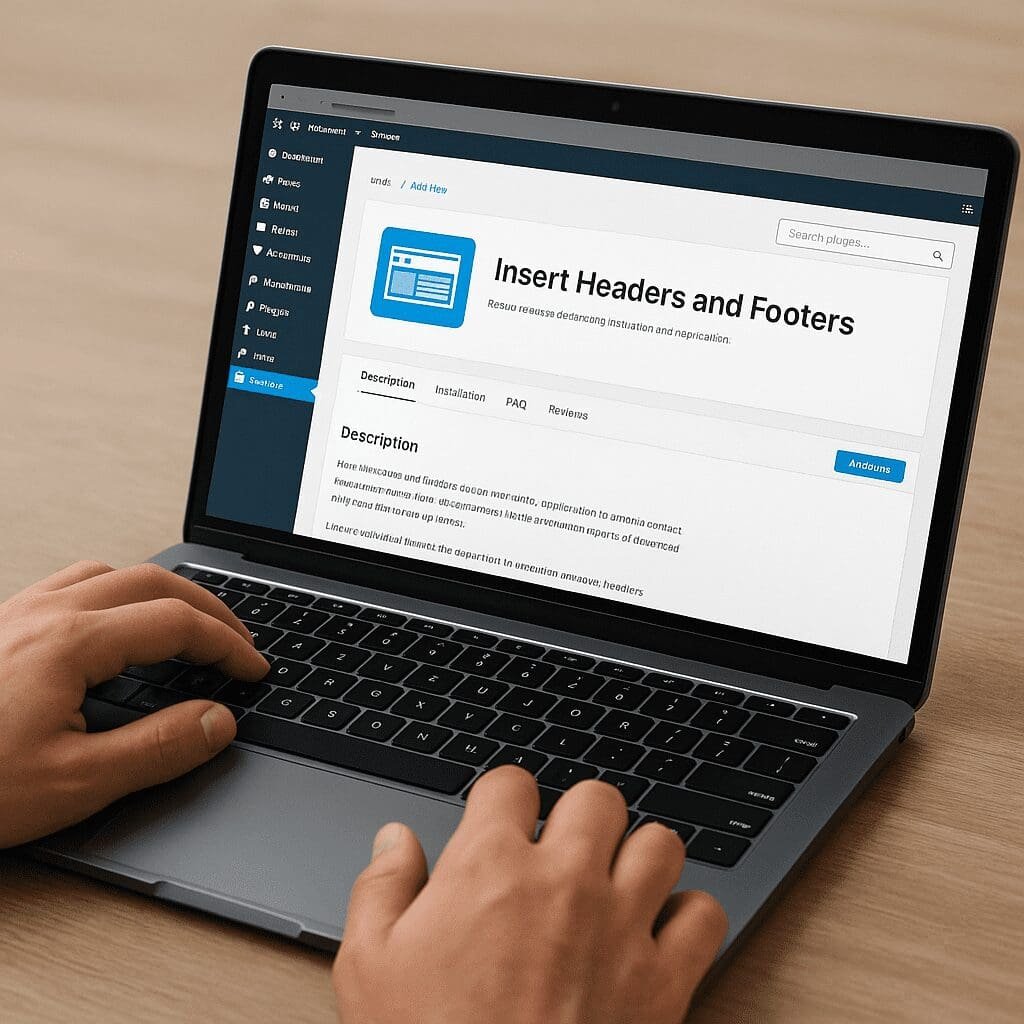
Insert Headers and Footers
Insert Headers and Footers is a deceptively simple WordPress plugin that solves a perennial problem: how to add small pieces of code sitewide without editing theme files, building a child theme, or risking typos in functions.php. With a few fields for the header, body, and footer, it centralizes common additions like pixels, meta tags, structured data, chat widgets, and consent tools. That simplicity lowers risk for marketers and editors, speeds up experiments, and preserves changes across theme updates and redesigns. The result is less friction between content, design, and engineering teams—and fewer late-night emergencies after an update overwrites custom code.
What Insert Headers and Footers really does
The plugin provides fields where you paste code that should appear in specific parts of every page. Typically, these locations are the document head, right after the opening body tag (if supported by your version of the plugin), and before the closing body tag. When WordPress renders a page, the plugin outputs your snippets in those exact places. You don’t need FTP access, you don’t need to learn template hierarchies, and you don’t need to worry about regressions when a theme is updated.
That capability covers a broad range of real-world needs:
- Marketing scripts: Google Analytics 4, Meta Pixel, LinkedIn Insight Tag, and other analytics pixels.
- Ad platforms and A/B testing tools that require sitewide tags or an initial loader.
- Search engine verification meta tags for Google Search Console, Bing Webmaster Tools, and Pinterest.
- Structured data using JSON-LD to help search engines parse entities, breadcrumbs, or articles via schema markup.
- Customer service tools like chat, feedback widgets, NPS surveys, or help beacons.
- Consent and privacy overlays, including CMPs for GDPR/CCPA and other compliance rules.
- Performance hints such as preconnect, preload, or DNS-prefetch links (when used carefully).
- Custom CSS or JavaScript that must load sitewide.
Because the plugin injects content globally, it’s ideal for tags that must be present on every page. For page-specific needs—such as a conversion event that should fire only on an order confirmation—this tool may not be granular enough by itself. Some users complement it with page-level tag managers or event hooks made available by their themes or eCommerce plugins.
Installation and initial setup
How to install
You can install Insert Headers and Footers from the WordPress admin. Navigate to Plugins, choose Add New, search for the name, and click Install Now. If you manage multiple sites, consider standardizing the plugin selection to avoid confusion: the name “Insert Headers and Footers” is popular, and one widely used implementation has evolved into a broader code manager. Check the author, number of active installs, and last updated date before proceeding.
Placing your code
Once activated, you’ll find settings under the WordPress menu—often in Settings. You’ll see fields corresponding to the head, body, and footer areas. Paste your snippet exactly as provided by the service you’re integrating. If a platform instructs you to place one part in the head and another at the end of the body, respect that guidance. Avoid “fixing” or reformatting the snippet; many tags rely on precise formatting to initialize properly.
Testing your changes
After saving, open your site in a new browser window and view the source to confirm the code appears in the expected place. Next, use your browser’s developer tools to check the network tab for successful requests or initialization calls. If the tag has a debug or preview mode (for instance, many pixels or testing tools offer one), enable it. Finally, verify that your server or CDN cache isn’t serving an older version of the page.
Will it help with SEO? The direct and indirect impact
Insert Headers and Footers does not magically increase rankings. However, it makes it much easier to implement key components that support SEO strategy and measurement:
- Search verification: Quickly add search engine validation tokens so you can access webmaster tools and submit sitemaps.
- Structured data: Add sitewide JSON-LD for organization, logo, breadcrumbs, or publisher details. While per-page markup often needs dynamic data, some elements benefit from a global baseline.
- Analytics consistency: Ensure that analytics tags are loaded uniformly across templates, which improves attribution and reduces data loss.
- Site migrations: Keep critical tags in place during theme changes, reducing the risk of temporary data gaps or invalid markup.
Two caveats deserve emphasis. First, structured data can be powerful, but improper or duplicate markup confuses crawlers and may trigger warnings in Search Console. Avoid stacking multiple, conflicting blocks—especially when themes or SEO plugins already output some markup. Second, performance remains a ranking signal via page experience. If you paste several render-blocking scripts into the head, you can harm loading metrics. Prefer asynchronous tags where possible, and minimize the impact of third-party script waterfalls by deferring nonessential code.
Performance, security, and reliability
Performance considerations
Third-party scripts can slow a site if not managed carefully. The plugin itself is lightweight; the risk comes from what you insert. Review each snippet’s loading behavior. If the provider supports async or defer, use it. Consider whether a tag truly needs to sit in the head or whether it can be moved to the footer. Use resource hints like preconnect and DNS-prefetch judiciously to speed up the first call to third-party domains. Always measure: compare Core Web Vitals before and after significant tag changes.
Security considerations
Inline code runs with the same privileges as any code on your site. Grant access only to trusted administrators, and keep a changelog of what was added and when. Do not paste code from unknown sources. If your site uses a Content Security Policy, verify that inline scripts are allowed or adjust the policy to include hashes or nonces where applicable. While the plugin is safe when used correctly, weak governance can introduce avoidable security risks.
Reliability and maintenance
One strength of Insert Headers and Footers is resilience across theme updates. Because the code is stored independently of your theme, changes to templates won’t remove your integrations. That stability is useful during redesigns and experiments. Still, treat tags as code: back up configuration, test on staging, and document requirements. If you rely on a CDN or page caching plugin, purge caches after substantial changes so users see the latest configuration immediately.
Advanced workflows and practical scenarios
Consent-aware injection of tags
Privacy laws and platform policies increasingly require conditional loading of scripts. If your consent tool provides a wrapper or API, insert the wrapper in the head and make nonessential tags depend on a consent event. In some cases, you must add the tag via the consent tool’s interface rather than directly through Insert Headers and Footers, ensuring it fires only after opt-in. This keeps your data collection aligned with user expectations and legal obligations.
Structured data strategy
For organization-wide entities, a sitewide JSON-LD block is convenient. For page-level data—like articles, products, or events—your CMS or SEO plugin should generate dynamic markup. If your theme already outputs JSON-LD, do not duplicate it. Instead, audit what exists and extend it selectively. Always test in the Rich Results Test and watch Search Console for warnings. The goal is accurate, minimal, and coherent markup that search engines can trust.
Analytics stack evolution
As your stack grows, the number of pixels and experiments tends to creep upward. Use this plugin to bootstrap quickly, then reassess. If you notice governance challenges—multiple versions of the same tag, difficulty coordinating changes across teams, or complex sequencing—you may benefit from consolidating tags into a container like GTM. Insert Headers and Footers can then load that single container, allowing marketers to iterate without editing WordPress settings for each change.
Comparing Insert Headers and Footers with alternatives
There are several ways to achieve similar outcomes in WordPress:
- Theme settings: Many modern themes expose fields to add code in the head or footer. Pros: no extra plugin. Cons: changes may not migrate when you switch themes, and controls vary widely.
- Full-featured code managers: Some plugins extend the idea with snippet libraries, conditional logic, device targeting, and error detection. Pros: flexibility and governance features. Cons: more complexity than some teams need.
- Google Tag Manager: A specialized container for marketing tags that offers triggers, variables, and debugging tools. Pros: powerful orchestration and rollback. Cons: a learning curve and another tool to govern.
- Custom child theme: Developers can hardcode tags, with version control and deployment discipline. Pros: rigorous, auditable, and scalable for engineering-led teams. Cons: slower iteration for non-developers.
Insert Headers and Footers sits in the sweet spot for simplicity and speed. It’s ideal for small to medium sites, for teams with limited technical resources, or as a bridge solution while you standardize on a longer-term approach. For enterprises with complex localization, consent logic, or dozens of campaigns, a container or code manager with more targeting may be preferable for long-term scalability.
Troubleshooting and common mistakes
- Duplicate tags: If a theme, SEO plugin, or GTM already loads a tag, don’t add another copy. Duplicates can corrupt attribution or double-count conversions.
- Wrong placement: Some scripts must initialize early; others should be deferred. Follow vendor instructions exactly.
- Ad blockers and privacy settings: Users or browsers may block common trackers. Validate with multiple networks and in private windows; expect partial data loss and plan for server-side solutions when necessary.
- Cookie consent gating: If legislation requires prior consent, ensure tags don’t fire prematurely. Integrate with your CMP so nonessential tags wait for opt-in.
- Caching conflicts: Purge caches after updates. If you use fragment caching or server-level caching, verify that the injected code appears for all user variants.
- Validation warnings: Unclosed tags or malformed JSON can break the page or markup. Paste carefully and validate with HTML checkers or structured data testing tools.
- Site health after a redesign: If tags seem missing post-redesign, confirm the plugin is still active and that no new theme setting overrides the header or footer hooks.
Governance, documentation, and safe workflows
Even a simple plugin deserves a mature process. Maintain a snippet inventory: what it is, why it exists, who owns it, and when it expires. Keep a running changelog inside your project documentation. Use staging environments to test new tags before production. Restrict admin access to those who understand the risks. If your organization has multiple stakeholders—marketing, legal, engineering—align on a lightweight request process so that new scripts are reviewed for privacy and compliance as well as technical impact.
Set calendar reminders to revisit old scripts. Campaign tags often outlive their usefulness, and legacy experiments can remain enabled long after the insights are gathered. Removing dead code reduces network chatter, improves page speed, and lowers the risk of conflicts.
Opinion: strengths, trade-offs, and when to reach for more
Insert Headers and Footers exemplifies good WordPress design: it does one thing well. By centralizing global code injection, it cuts the friction between marketing and development. For many sites, that’s all that is needed to move quickly without compromising stability. It also prevents the most common pitfall for non-technical users—editing theme files directly and losing changes on the next update.
The trade-offs come from its minimalism. Without granular targeting, complex stacks can become unwieldy. If you’re frequently running seasonal campaigns, coordinating multiple pixels, or sequencing events across user journeys, a tag manager or a fuller-featured snippet manager will provide better guardrails. Similarly, sitewide injection is not a substitute for application-level hooks—for example, firing purchase events only on order confirmation pages may require eCommerce-specific integration rather than a global script.
Overall, the plugin earns high marks for ease of use, reliability, and the balance it strikes between power and simplicity. It’s an excellent first tool in the toolbox and remains relevant even after you adopt a tag manager: use it to load the container or to maintain a handful of foundational snippets that must persist across the site.
Realistic expectations for marketing measurement
Good measurement is bigger than one plugin. Think through your data model, consent strategy, and QA process. Centralize ownership of sitewide tags and define standards for naming, events, and parameters. Ensure your tracking map is documented—what fires where and why—and tie each tag to a specific business question. When your stack matures, use server-side endpoints or cloud functions to reduce client-side overhead. The plugin will still play a role, but your architecture will carry most of the load.
Frequently asked questions
Does Insert Headers and Footers slow down my site?
The plugin itself is lightweight. Slowdowns come from the scripts you add. Prefer async and defer where supported, minimize the number of third-party calls, and test Core Web Vitals before and after changes.
Can I inject code only on specific pages?
By default, the plugin outputs globally. For page-specific injection, consider a code manager with conditional logic, a tag manager, or theme/template hooks.
Is it compatible with Full Site Editing and block themes?
Yes—because it hooks into WordPress output rather than theme templates, it remains effective across classic and block themes. Always test after theme changes.
Will it help me pass Search Console verification?
Yes. Paste the meta tag in the head field, save, and then complete verification in Search Console. After verification, many teams keep the tag in place for continuity.
Can it add HTTP headers like HSTS or CSP?
No. It adds HTML markup and scripts, not server-level headers. Configure security headers at the server, CDN, or security plugin layer.
What about eCommerce conversions?
Global tags can initialize libraries, but purchase events usually require page-specific triggers or data layers. Use your eCommerce plugin’s hooks or a tag manager to avoid firing events on the wrong pages.
Does it conflict with caching or CDNs?
It generally works well with caching. After changes, purge caches to ensure fresh pages. If you use advanced edge caching, confirm that the injected markup is present in the cached HTML.
Practical checklist before going live
- Inventory current scripts and remove obsolete ones.
- Paste only the required code, in the locations recommended by the vendor.
- Confirm no duplicate tags are loaded via your theme or other plugins.
- Test in staging; verify in source and via network requests.
- Measure impact on Core Web Vitals and adjust loading strategy.
- Align with privacy and consent requirements before activating tags.
- Document ownership, purpose, and renewal/expiry dates for each snippet.
Closing thoughts
Insert Headers and Footers is a small plugin that often makes a big difference. It creates a safe, centralized path for sitewide code that marketers rely on and developers appreciate. Used thoughtfully, it improves agility without sacrificing quality, keeps your data collection consistent, and makes routine integrations trivial. Pair it with disciplined testing and lightweight governance, and it will remain a dependable cornerstone of your WordPress stack—whether you run a lean blog or a complex, multi-site operation that values long-term stability and measured growth.